
/faq/
/frequent questions/
Q: Is this app really free? What's the catch?
A: Yep, it is free, and there is no catch. We do not track you, collect your data, or show ads. The app has optional tips if you want to support development.
Q: The app I want to add is not in the list.
A: You can add it as a custom app. See the custom app section.
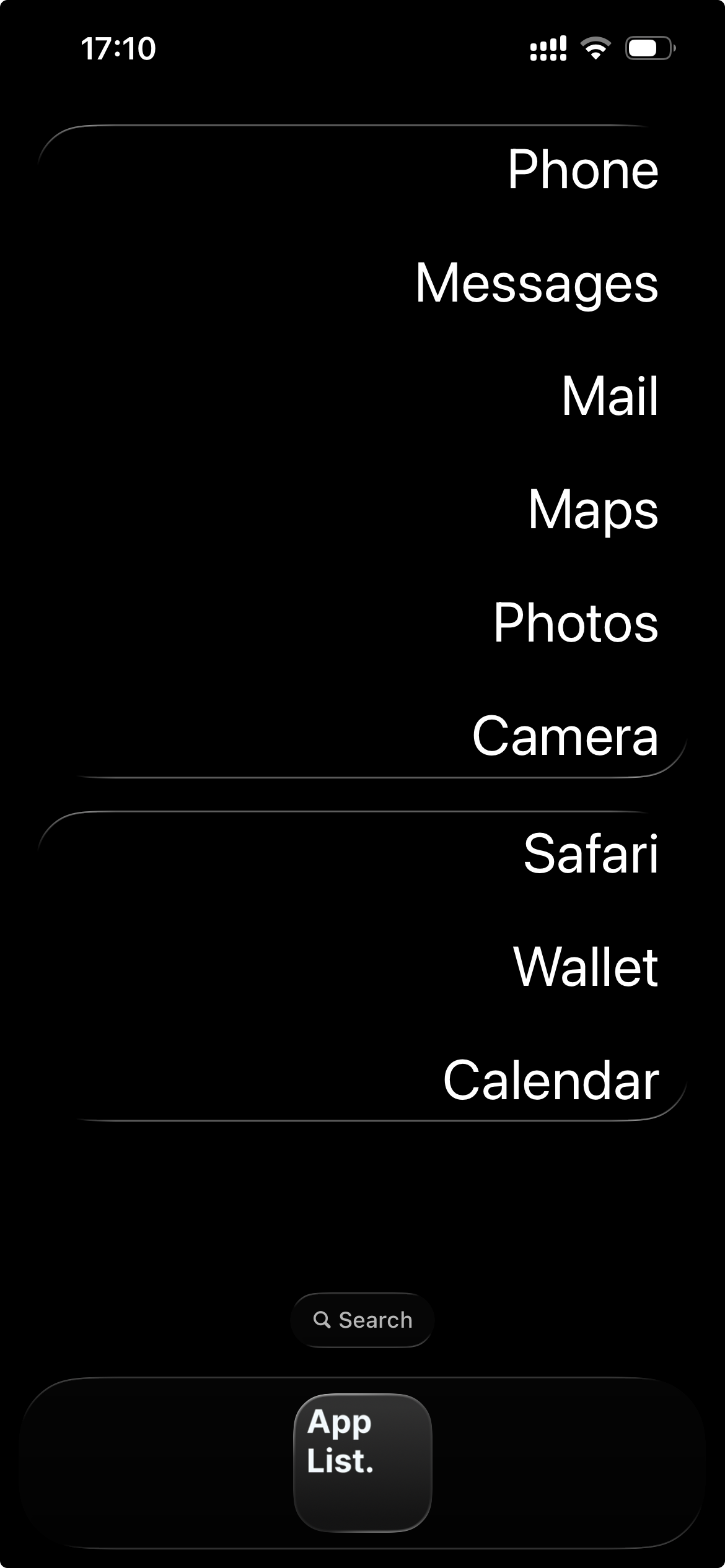
Q: Why do my widgets have an "AppList." label at the bottom?
A: Use Large icons in the Home Screen Customize menu. See the additional setup steps.
Q: I upgraded to iOS 26 and now my widgets have a glass contour. Is that a bug?
A: At the time of writing, there is no way to disable the new glass contour. I contacted Apple about it and am waiting for a response.
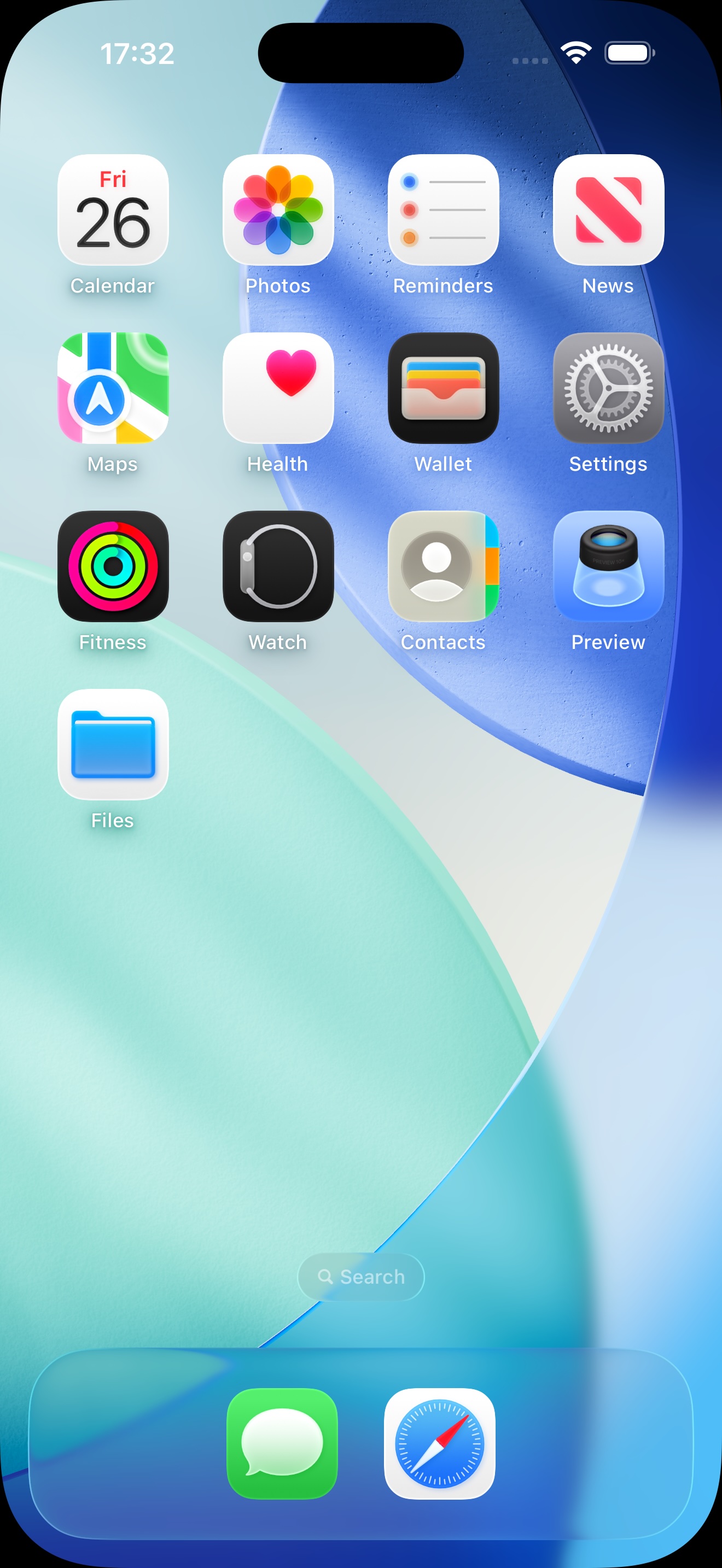
Q: How do I get the super dark style shown in the marketing screenshots?
A: See the additional setup steps.
Q: Does AppList. track my data? What is your privacy policy?
A: SXP Studio apps have a simple Privacy Policy: we do not collect your data.
Q: I have a suggestion, bug report, or question.
A: AppList. is a one-person project, so support is limited. You are still welcome to email applist@sxp.studio.
Q: Does something happen if I give you a tip with the in-app purchase?
A: First, thank you for considering it. Tips support the project. They do not unlock extra functionality, though there may be a small bonus easter egg.
/basic setup/
AppList. lets you turn your Home Screen into a list of apps.
- Long press on an empty area of your Home Screen
- Press Edit
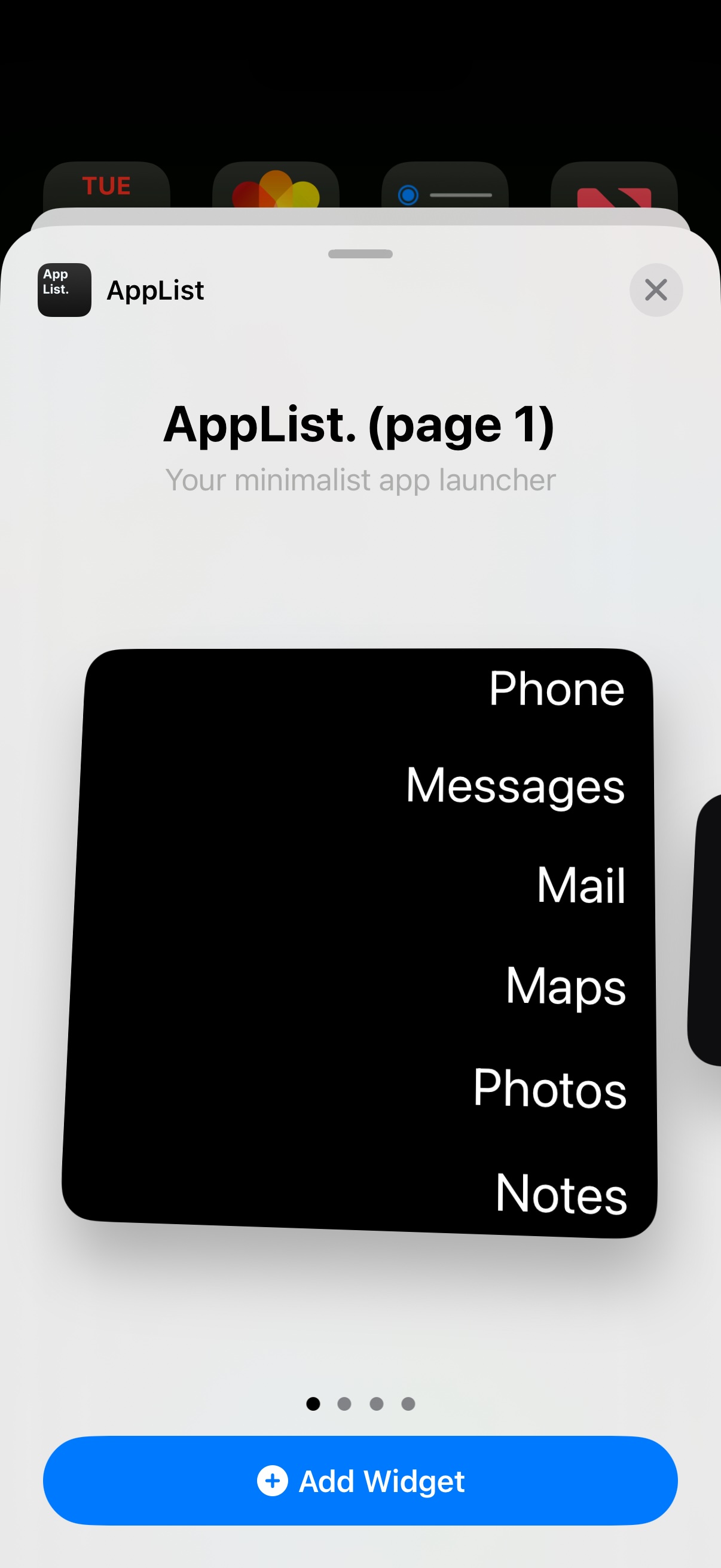
- Press Add Widget
Each widget corresponds to a page. Using two consecutive pages lets you cover the full screen.
/additional steps/
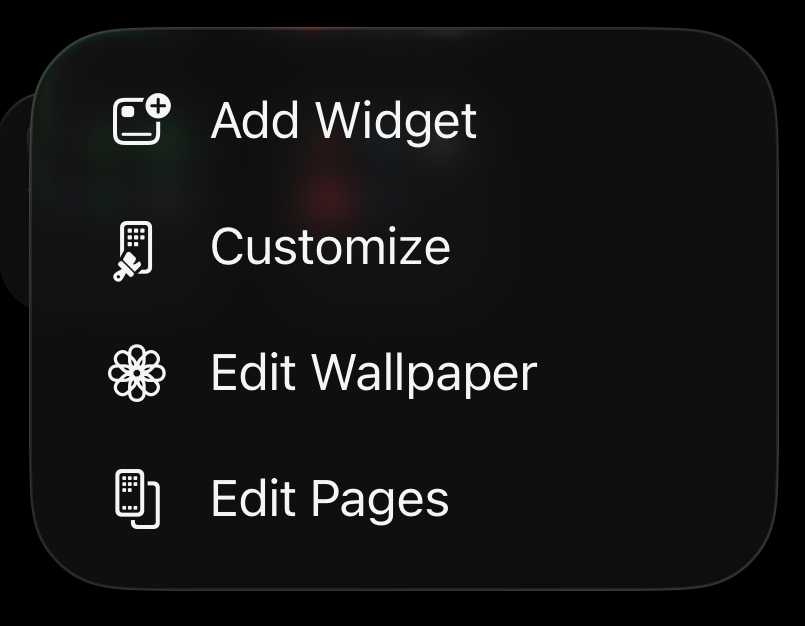
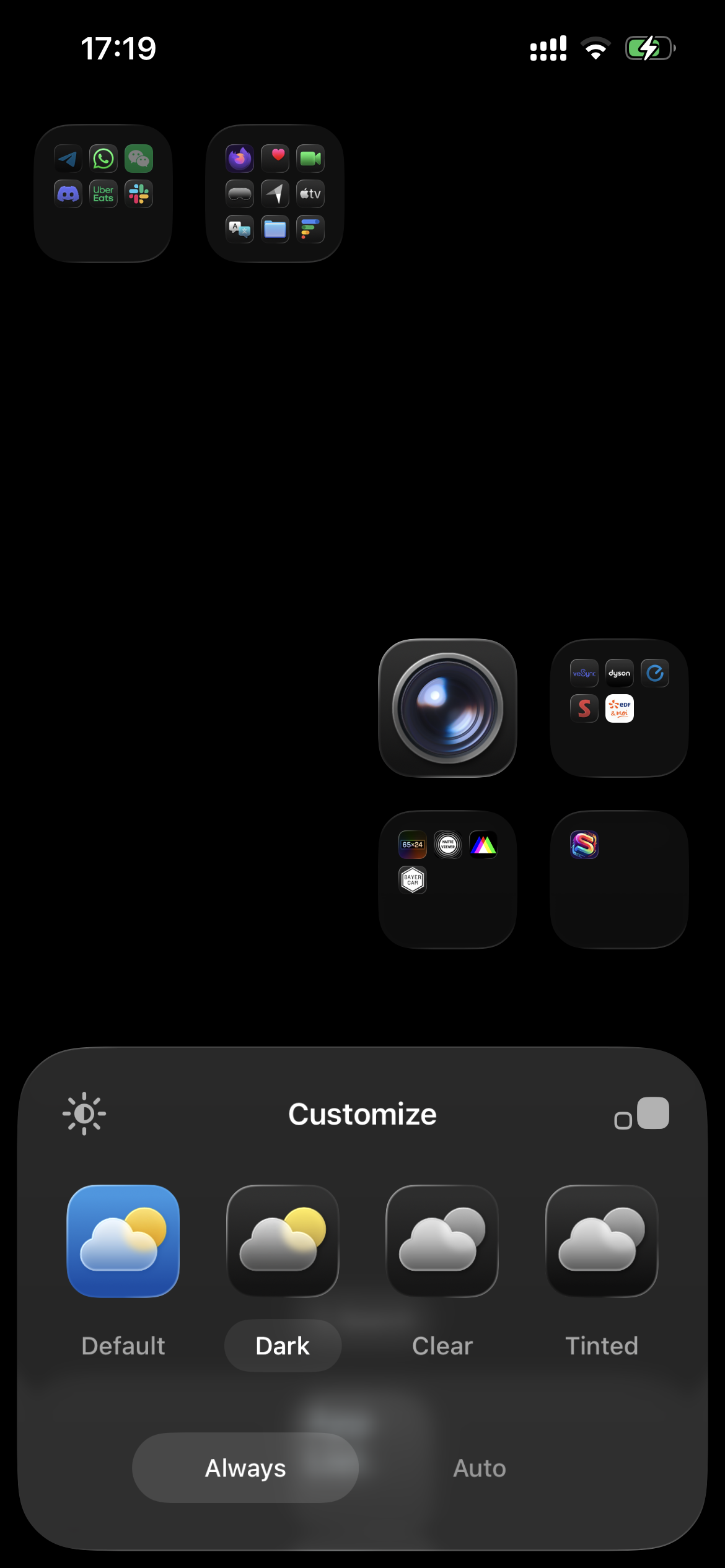
After adding widgets, long press an empty area of your Home Screen to open the Home Screen menu.
Customize
Press Customize and make sure icons are set to Large. Choose Dark to match the marketing screenshots, or Clear if you want transparent widgets.
Edit Wallpaper
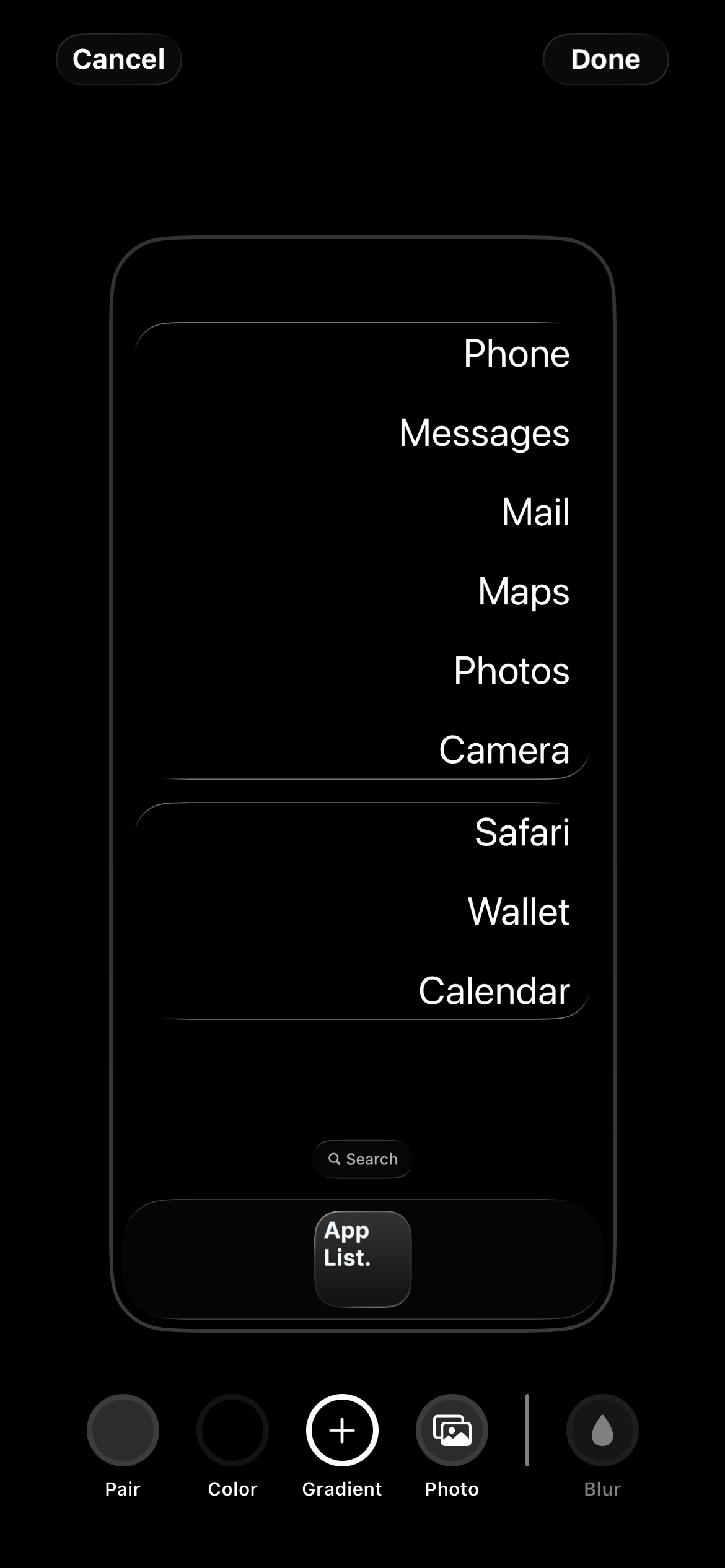
Return to the Home Screen menu, press Edit Wallpaper, choose Color, and choose black if you want the dark screenshot style.
/adding a custom app/
- Go to the app selection page
- Tap Change Selected Apps
- Tap Do not see your app
Option 1: Add a custom app using Apple Shortcuts
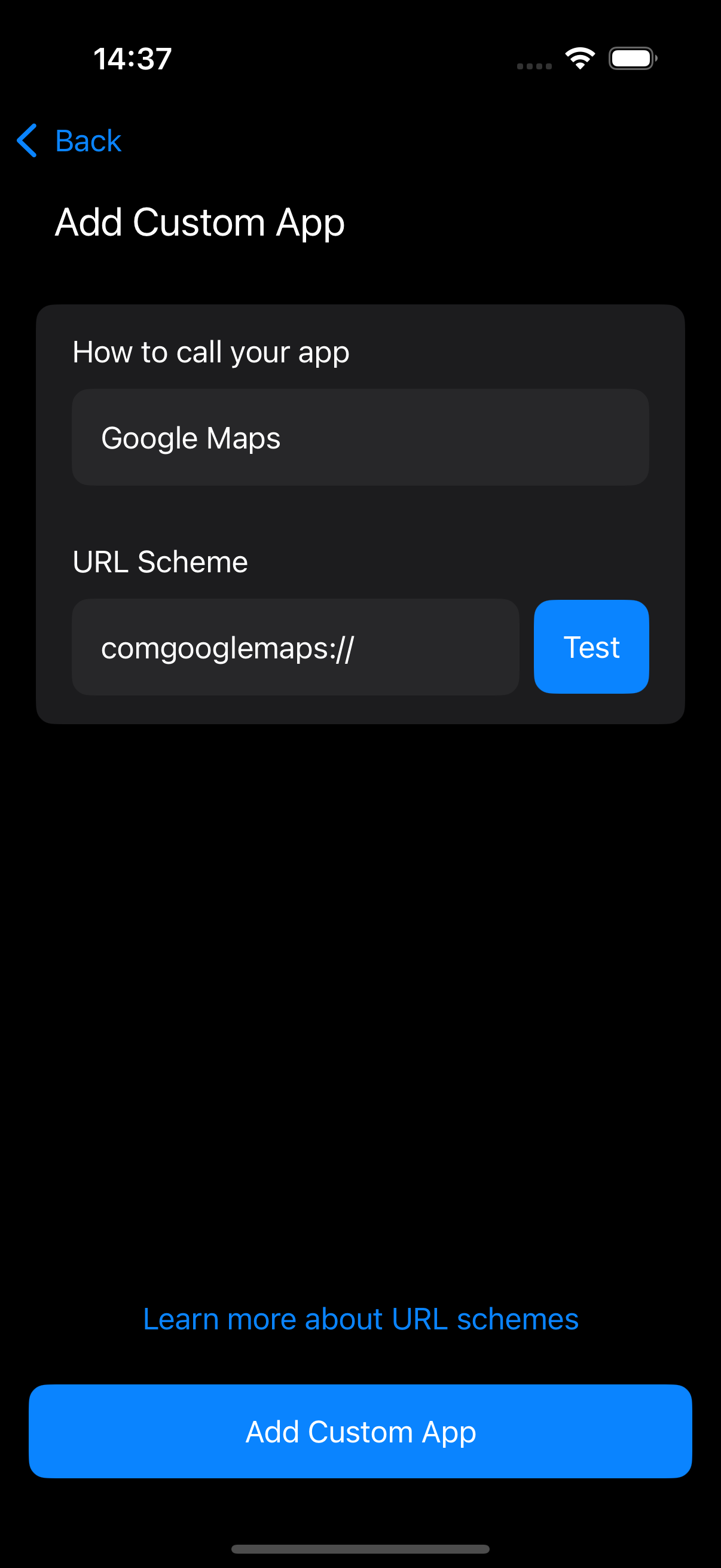
Create a new shortcut using Apple's Open App action, then add a custom app in AppList. with the exact shortcut name as the argument. You can use the Test button to confirm it works.
Option 2: Add a custom app using a URL
- Universal Links, such as
https://www.airbnb.com - URL schemes, such as
music://
Not every app supports Universal Links or URL schemes, so you may need to research and test the URL first.
Option 3: Contribute to the open source list
If you have an app that belongs in AppList., you can contribute to the open source app catalog.